
FAQ
Here you will find answers to frequently asked questions about cybele.de and our recordings, including technical questions and practical tips. We add new questions regularly. Click on a question to open the answer. Can’t find your question? Feel free to get in touch via our Contact page.
Cybele as an app on your home screen
Use cybele.de like a native app on your smartphone. Save the website directly to your home screen in just a few simple steps.
iPhone (Safari)
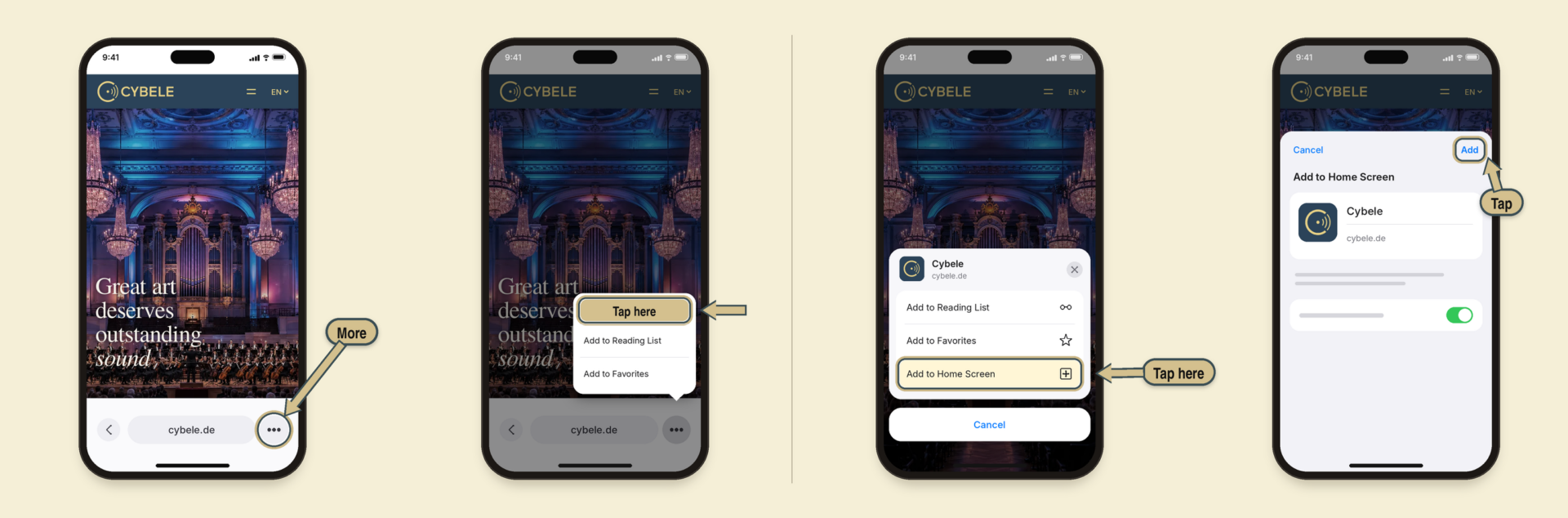
Step 1: Open cybele.de in Safari and tap “More” (three dots) at the bottom right. If Safari shows the address bar at the top or bottom, tap “Share” directly.
Step 2: Tap “Share”.
Step 3: Scroll down the list and tap “Add to Home Screen”.
Step 4: Check the name and tap “Add” in the top right corner. The Cybele icon will appear on your home screen. (From iOS 26, there is a toggle switch for the web app view here; it can remain turned on).
Android (Chrome)
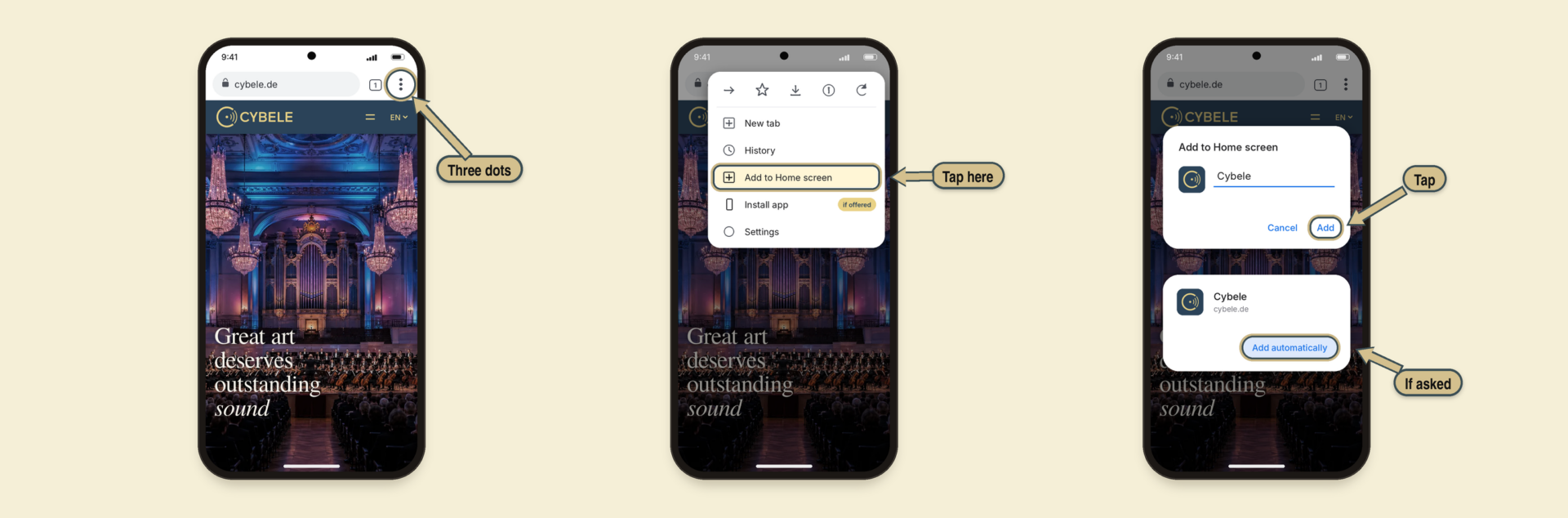
Step 1: Open cybele.de in Chrome and tap the three dots in the top right corner.
Step 2: Select “Add to Home screen” from the menu. If “Install app” is offered, you can choose that as well.
Step 3: Check the name and tap “Add”. Then, if prompted, select “Add automatically” or position the icon yourself. Done!
How to watch 360° YouTube videos at their best
Our 360° videos are produced in high resolution to provide an immersive visual experience. For optimal playback on YouTube, there are two important aspects to consider: 360° viewing and image quality.
360° viewing
On mobile devices, interactive playback of 360° videos is currently not supported in web browsers or embedded YouTube players.
To watch the video interactively in 360°, please do not press the red Play button with the white triangle. Instead, select “Watch on YouTube” directly below it. The video will then open in the YouTube app, where you can look in all directions by moving your smartphone or swiping across the image.
On computers, however, YouTube supports interactive 360° playback in current versions of Chrome, Firefox, Microsoft Edge and Opera.
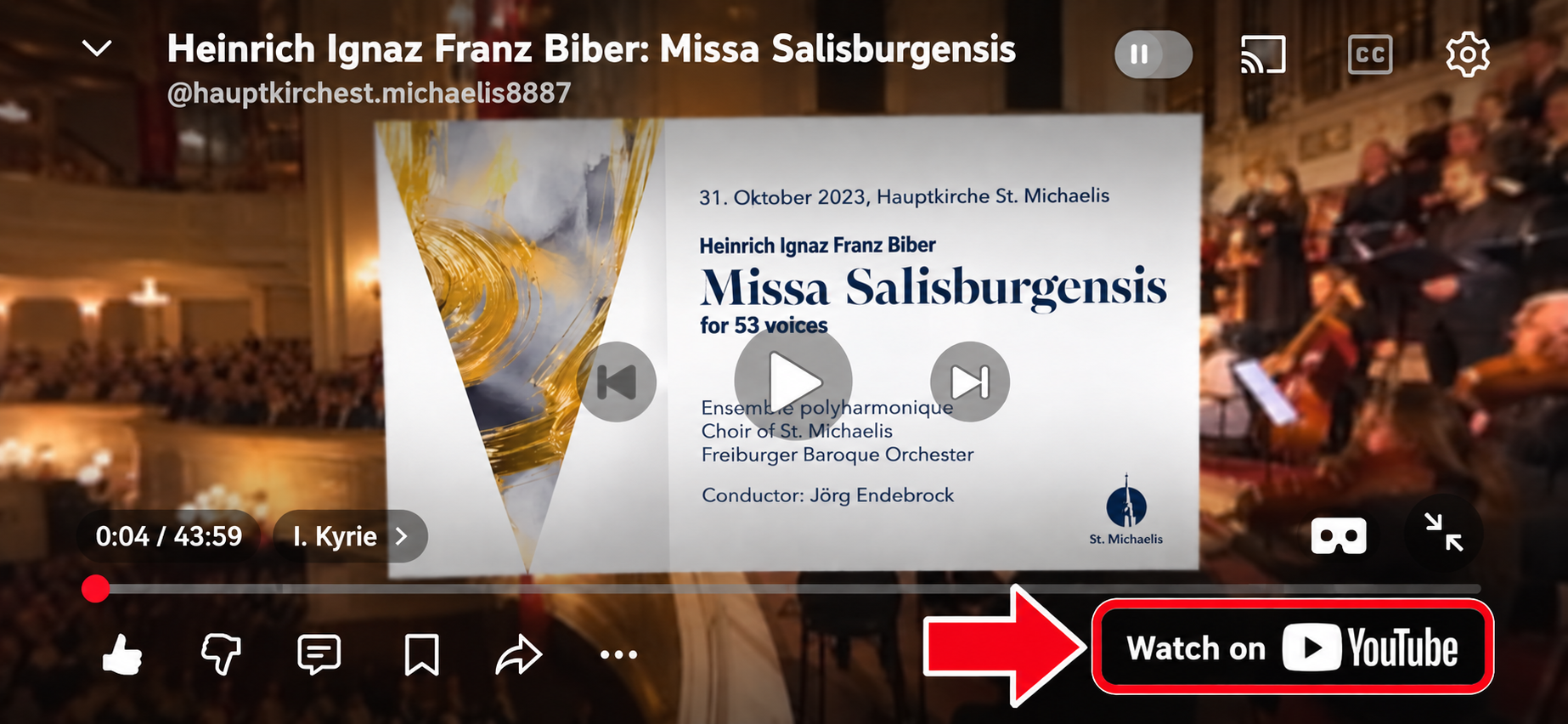
Image quality
YouTube automatically adjusts playback quality according to the device being used, player size, browser and available internet connection. Unfortunately, as the video provider, we cannot determine this automatic selection. As a result, our high-resolution 360° videos may initially be displayed at a much lower resolution and can therefore appear blurred or even noticeably pixelated.
This does not mean that the video itself is available only at this low resolution. The playback quality can be manually changed to a higher resolution in YouTube.
Low resolution is particularly noticeable with 360° videos because the total image resolution is distributed across the entire 360° field of view, while only a section of it is visible at any one time.
For appropriate image quality, we recommend at least 1080p on mobile devices. On computers with a Full HD display, we recommend at least 2160p (4K) whenever possible. Even on a Full HD display, the higher resolution provides a significant advantage with 360° material because only a section of the complete 360° image is displayed at any one time.
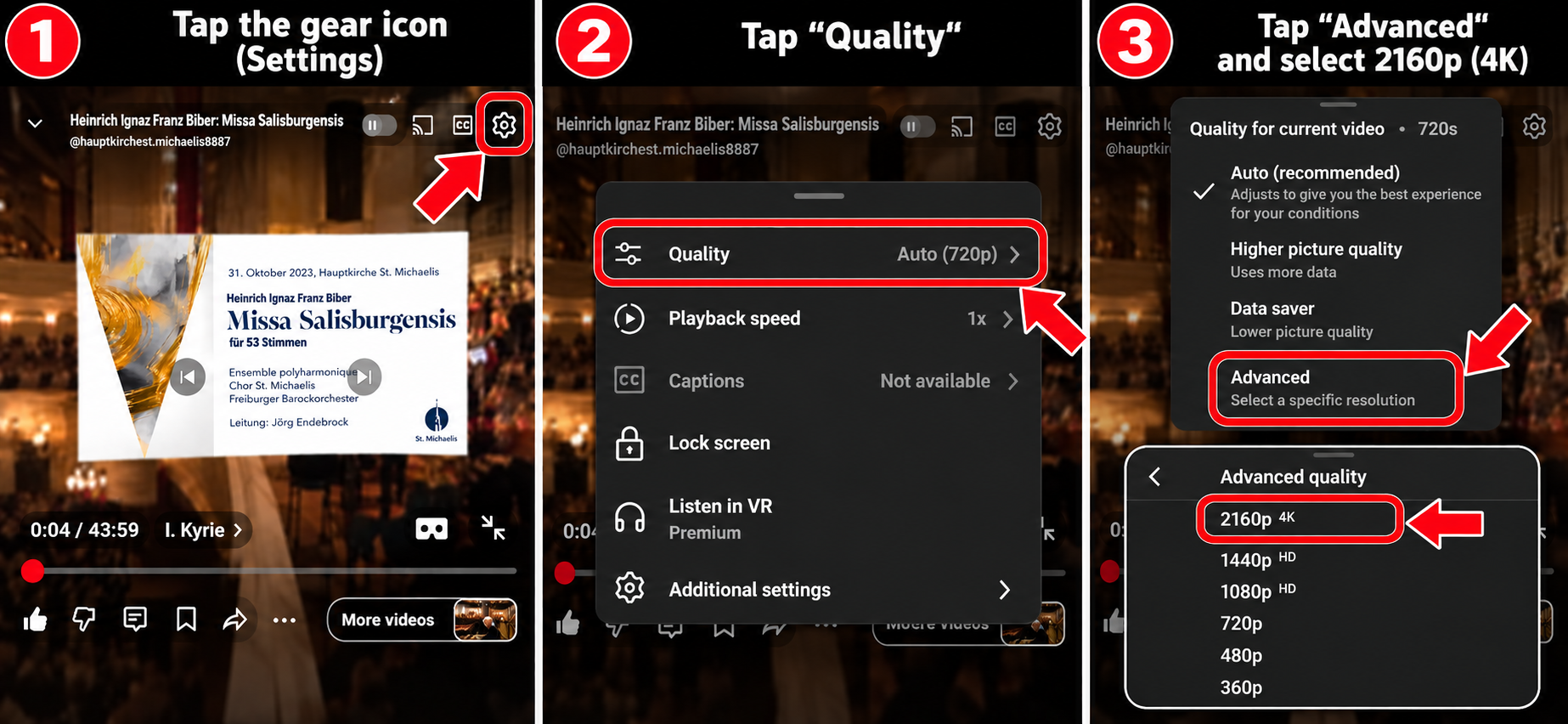
How to adjust the image quality on YouTube:
⚙ Settings → Quality → Advanced → desired resolution
On mobile devices, select at least 1080p whenever possible; on computers, select at least 2160p (4K) whenever possible. If this resolution is not available, please select the highest resolution offered.
Our recommendation:
Mobile: at least 1080p · Computer: preferably at least 2160p (4K)
Listen to Apple Music in Dolby Atmos with headphones (using Virtuoso 2)
Listen to Dolby Atmos albums from Apple Music on headphones with APL’s standalone app Virtuoso 2. It converts the 7.1.4 signal into a binaural headphone presentation that, according to the APL manual, sounds more accurate and spacious. This guide takes you step by step through the one-time setup on your Mac.
What you need
- a Mac running macOS Monterey 12.5 or later and the Apple Music app
- APL’s Virtuoso 2 (Standalone) app: paid software, 14-day trial, activation via an iLok account
- the virtual audio driver BlackHole 16ch (free download)
- your headphones
One-time setup
Step 1: Install BlackHole 16ch and Virtuoso 2. Activate Virtuoso in the iLok License Manager (trial or licence code).
Step 2: Open Audio MIDI Setup (Applications > Utilities). Select BlackHole 16ch on the left and use it as the output device. Right-click it, choose “Configure Speakers” and select “7.1.4 Dolby Atmos Surround”.
Step 3: In the Apple Music app open Settings > Playback and set “Dolby Atmos” to “Automatic”.
Step 4: Start Virtuoso 2. Under Options > Audio Settings choose BlackHole 16ch as input (input not muted) and your headphones as output. (macOS may ask for microphone access, which means the audio input. Please allow it.)
Step 5: Choose “Dolby Atmos 7.1.4 A” under Input config. Under HPC EQ select your headphone model if it is listed, otherwise “None”.
Listening
Step 6: Play an album or track in Dolby Atmos in Apple Music. The sound now runs through Virtuoso to your headphones. Start at a low volume and set the level with Gain in Virtuoso.
Step 7: Afterwards, switch your usual output device back in the macOS sound settings. Done!
Fine-tuning (optional)
Room amount: The Ambience knob is set to 50% by default. Adjust it by ear.
Head model: Under Settings > HRTF there are five sets (A to E). According to the APL manual, one of them often sounds more natural to your own ears.
Good to know
Listen on headphones only and keep additional sound effects (equalizer, sound enhancer) switched off. This route is described in the APL manual for macOS, not for Windows.
Virtuoso 2 and BlackHole are third-party products; prices and menu names may change (as of October 2026).